Editor basics
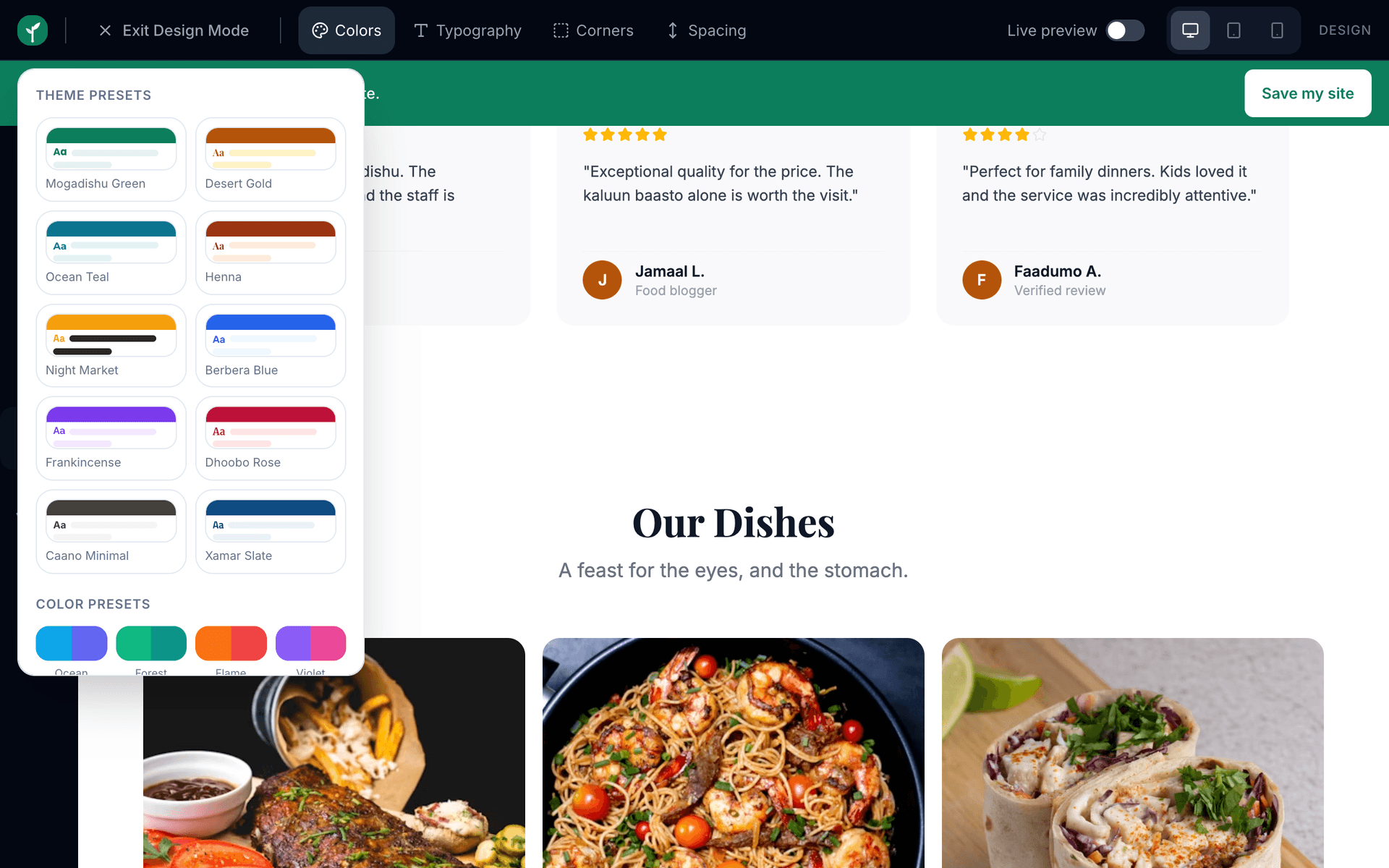
Change colours and fonts
Updated 2026-08-27
Midabo iyo font-ku waxay ka socdaan hal meel, Design tab, isbeddelkuna wuxuu taabaaban buuxa u dhigaa dhammaan boggaaga.
You set your brand once and the whole site follows. There is no need to restyle each section by hand.
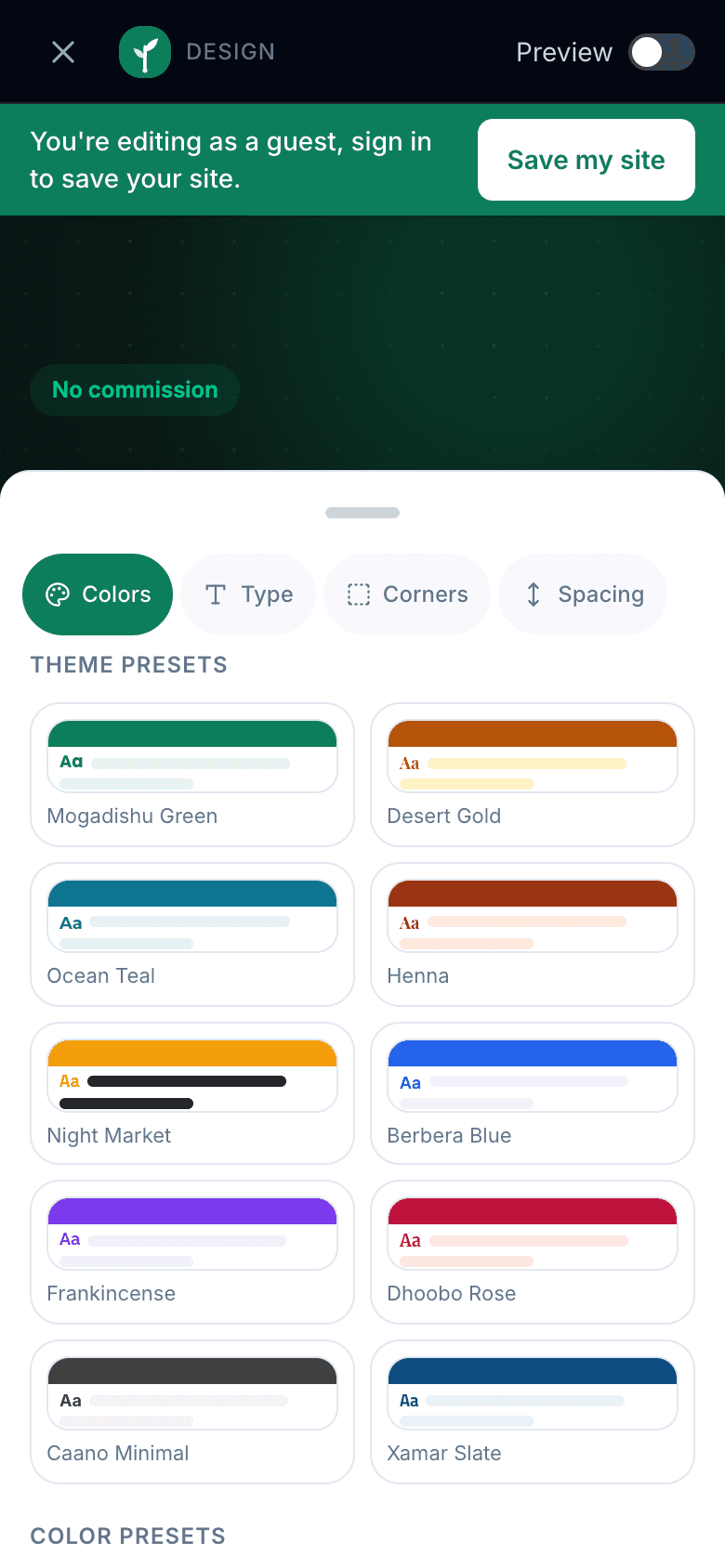
- 1Open the Design tab in the editor's side menu.
- 2Pick a primary colour, this becomes your buttons, links and highlights. Choose something close to your logo or shop sign.
- 3Pick a secondary colour for softer backgrounds and accents.
- 4Choose a heading font and a body font from the lists. Every readable combination works; when unsure, keep body text simple.
- 5Watch the canvas update instantly across every section.
Strong contrast sells: dark text on light backgrounds is easier to read on cheap phone screens in daylight. Avoid light grey text on white.
Colours and fonts apply to the public site too, not just the editor preview, customers see exactly what you see.
Resist using more than your two chosen colours. A page with five colours looks cheap no matter how good each colour is on its own; consistency is what makes a small business look established.