Editor basics
Add, reorder and remove sections
Updated 2026-08-27
Boggaagu wuxuu ka kooban yahay qaybo (sections), wax ku dar, kor u qaad ama hoos u dhig, nuqul samee ama tirtir.
Your page is a stack of sections: a hero at the top, then features, gallery, contact, and so on down the page. Managing them takes seconds.
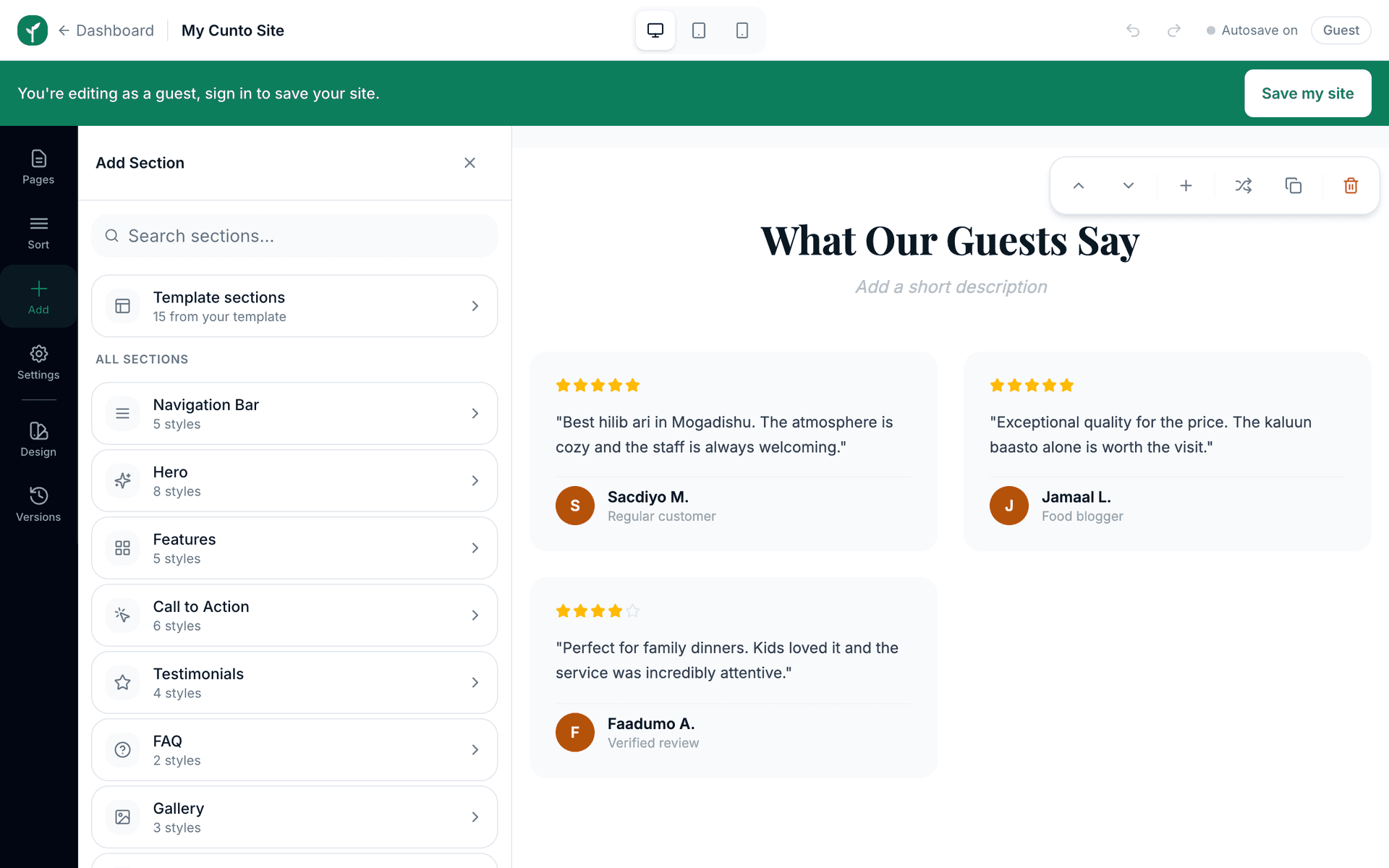
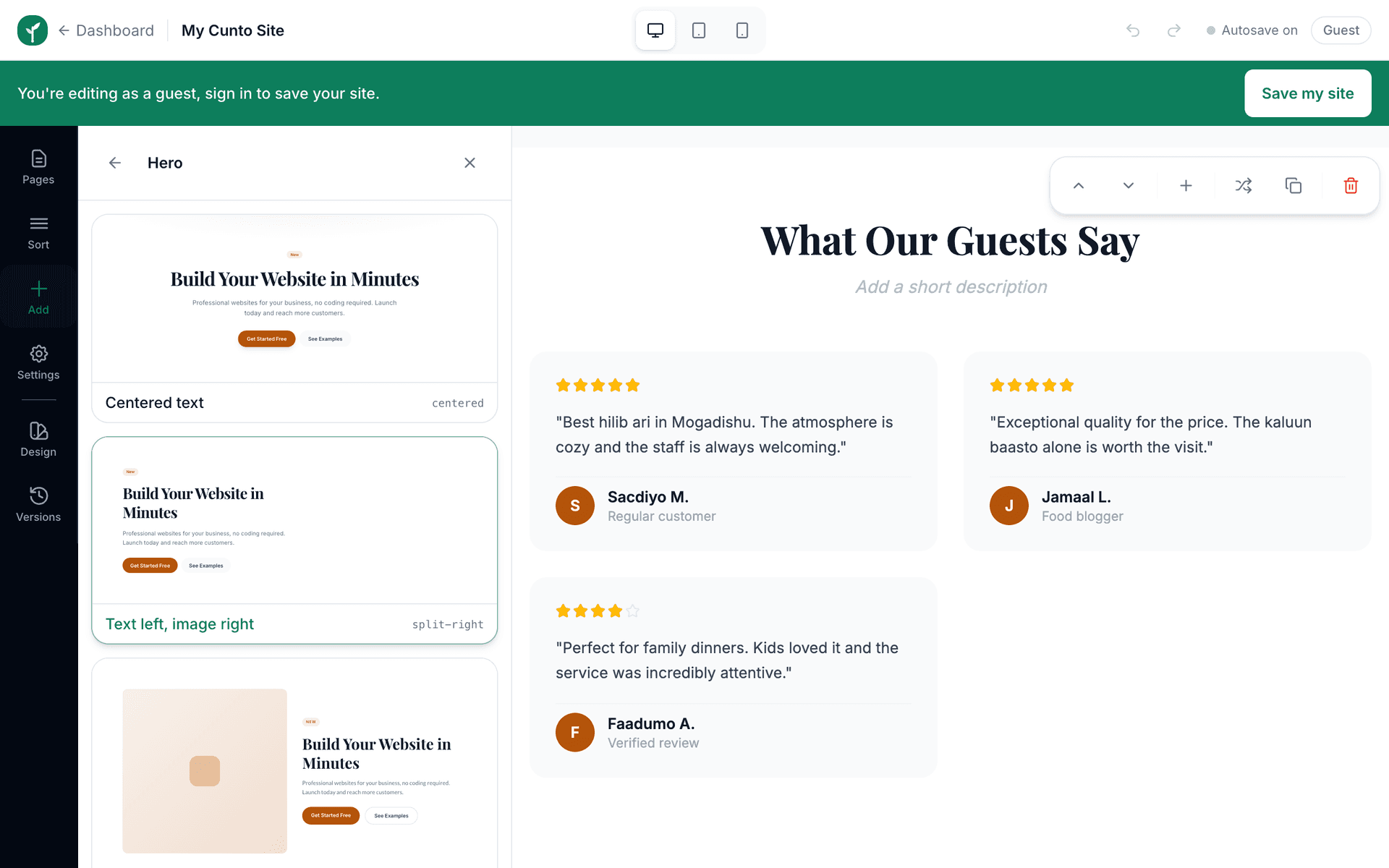
- 1To add one: open the Sections tab, pick a section type (hero, features, testimonials…), then pick the style you prefer. It inserts right below the section you have selected.
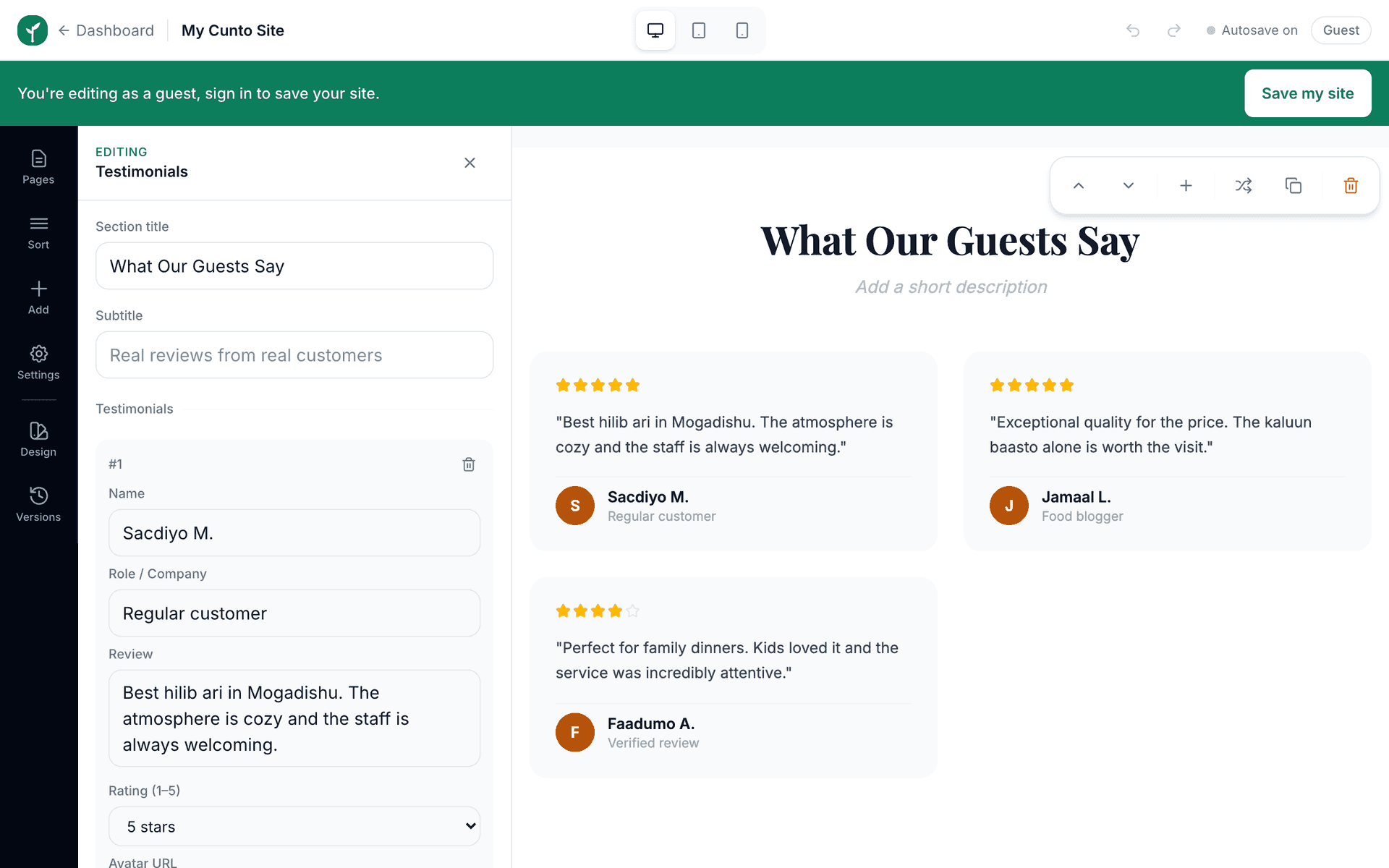
- 2To move one: select the section on the page and use the ↑ ↓ buttons on its small toolbar.
- 3To copy one: use Duplicate, handy for repeating a service card layout several times.
- 4To delete one: use Delete on the same toolbar. Deleting removes that section only, never the whole page.
- 5To change how one looks: use Change style to swap its layout while keeping your text and pictures.
Order matters more than quantity. Visitors read the top of the page, put who you are and what you sell there, and leave legal or background text for the bottom.